

This is a Programing R Tutorials with a list of R chapters.
Chapter 1: Introduction to R Programming
Downloading and Installing R
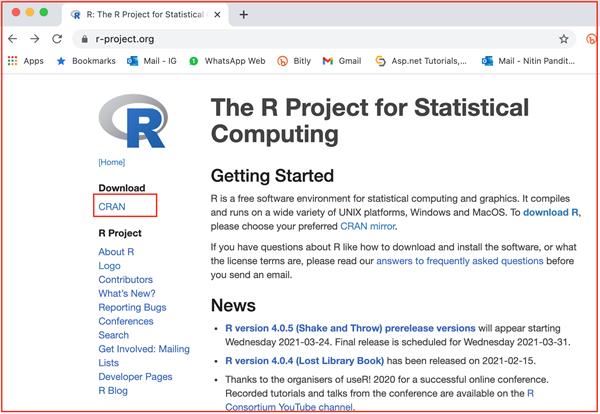
You can install R on Windows or Apple's Mac OS computer by downloading it from R Project's official site ( https://www.r-project.org) or follow the below steps to do the same.
Step 1: Click on the below link and find the "Download CRAN" option and click to open the CRAN Page.
Step 2: On this page, you will found some of the Archive Networks to download R from your nearest location so please choose a location close to you.

Once you'll select the location, click on this to go to the next page.

Select your download type which suites to your OS.
Step 3: I have selected the Mac OS X and now select the release version which you might like to use on your local computer like I have selected the latest version 4.0.4 pkg file(on March 2021).

Step 4: Find your downloaded file from local downloads and double click on this to run the installer.
Click on continue if you are also on the Mac OS or follow the instruction suggested by your installer and you get the successful installation message soon.

R Studio
What is R Studio?
RStudio is an integrated development environment (IDE) for R, a programming language for statistical computing and graphics. It is available in two formats: RStudio Desktop is a regular desktop application while RStudio Server runs on a remote server and allows accessing RStudio using a web browser.

- Developer(s): RStudio, PBC
- Initial release: 28 February 2011;
- Open Source Repository: github.com/rstudio/rstudio
- Written in: Java, C++, JavaScript[3]
- Supported Operating system: Ubuntu, Fedora, Red Hat Linux, openSUSE, macOS, Windows NT
- Supported Platform: IA-32, x86-64; Qt
- License: Affero General Public License v3.
- Website: www.rstudio.com
Downloading and Installing RStudio
Download R Studio software from the official website:
Or use the direct download link for quick navigation:
https://www.rstudio.com/products/rstudio/download/
Select the download type as RStudio Desktop (Open Source License) for non-commercial / community use only:

Click to download and run the setup file to continue:

Once you got the setup run that and follow the installer instruction and you'll find RStudio running on your local system:
I hope this helps. Please share this and stay tuned for upcoming articles.